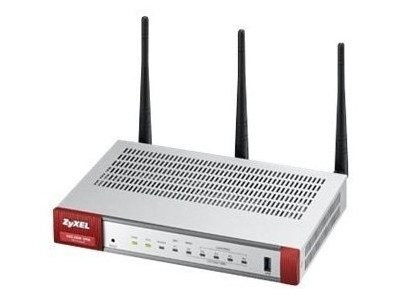
Although I thought of knowing how to open ports on a firewall I was proven wrong when I had to open the ports for the videogame For Honor. Therefore I have asked help to Zyxel which has been very kind and their answer successfully solved the issue. Downbelow how they suggested to proceed.
Network configuration
The network I was working on is configured as follows:
Modem –> Firewall Zyxel USG20W-VPN ~~~ Wireless Network ~~~ Gaming PC
Checking WLAN settings
As the gaming computer is connected through a wireless connection first of all it is necessary to check if the WLAN is sending the data on the right network, which in our case was LAN1. In order to do that proceed as follows.
Add the WLAN to the right zone:
Configuration> Object> AP Profile> SSID
Select the desired SSID and click on “Edit”.
Under “Local VAP Settings”, select “Off” for VLAN Support.
As an “Outgoing Interface”, select the zone to which the WLAN should connect to the Internet, eg: lan1.
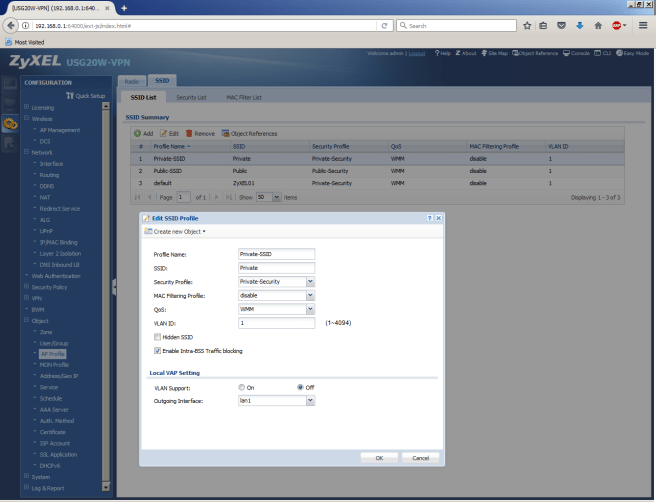
Assign a static IP address to the gaming PC
Next, you assign a static DHCP address to your game PC on the interface using the WLAN as an “outgoing interface”.
(Network> Interface> Ethernet)
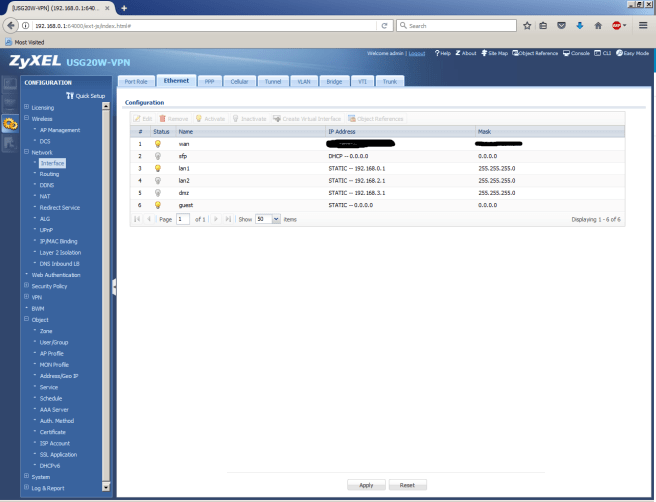
Double click on “lan1”, activate the “Advanced settings” and scroll down until you find “Enable IP/MAC binding”. Activate the checkbox and in the “Static DHCP table” click on “Add”. Assign an IP address to the MAC address of the wireless or ethernet card of the Gaming PC.
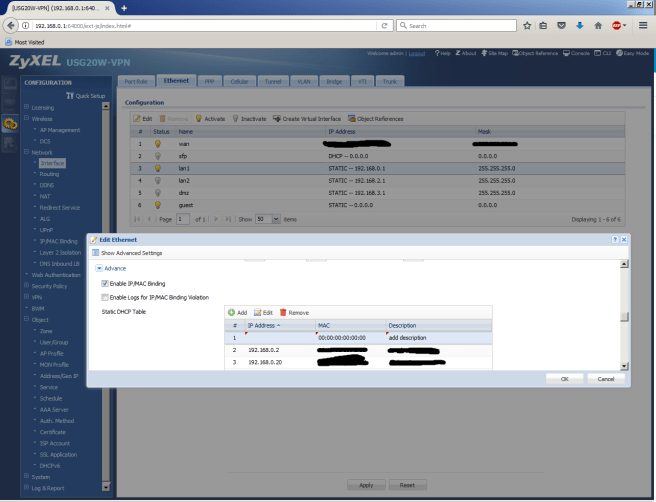
Create an address object under Object> Address / Geo IP for your game PC with the Static DHCP address.
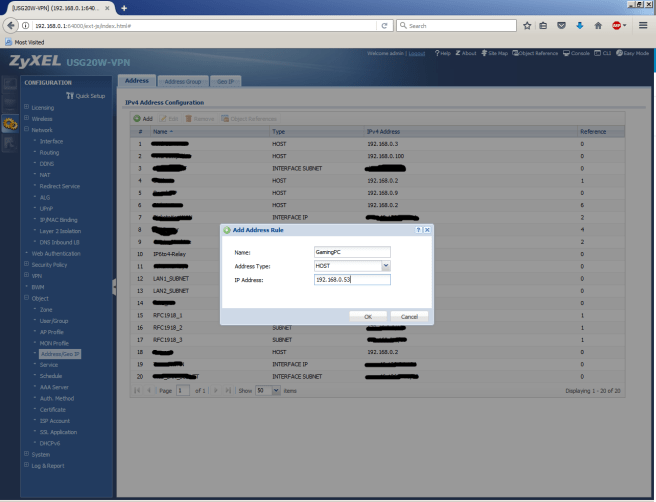
Creating ports and assigning to a service group
Under Object> Services> Services, create all ports that you do not already have.
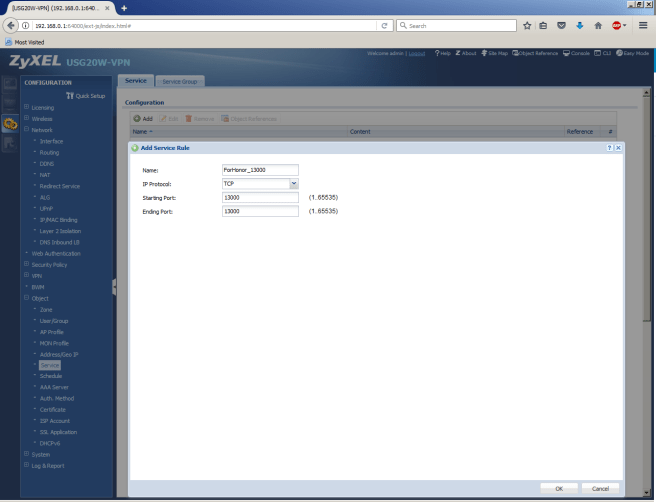
With the same procedure create the objects for the following ports:
TCP: 80, 443, 13000, 13005, 13200, 14000, 14001, 14008, 14020, 14021-14024
UDP: 3074, 3075
A list of the ports that should be opened for PC, PS4 and XBOX is found at this link.
Please note, however, that opening these ports will result in a significant security risk.
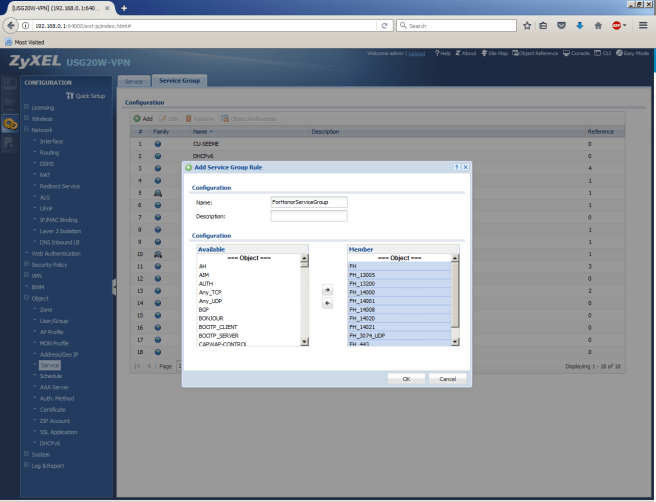
For later use it is very convenient to create a “Service Group” with the ports created before. In Object –> Service Group tab add
Creating a new Virtual Server object
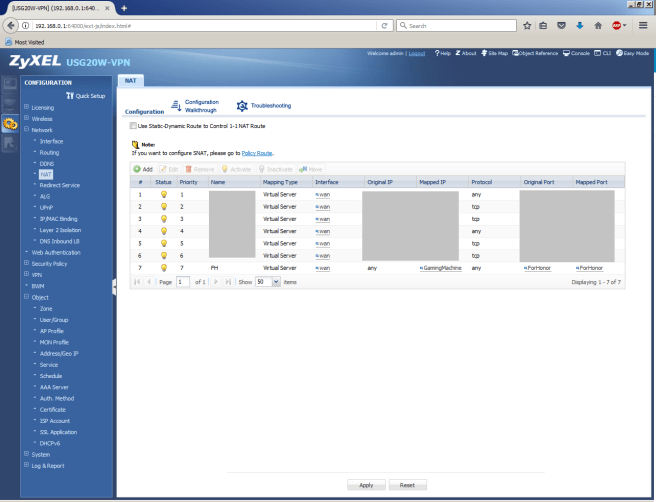
Under Network> NAT, create a new Virtual Server object
Original IP: Any
Mapped IP: Game PC
Port Mapping Type: Service Group
Original Service Group: Game Service Group
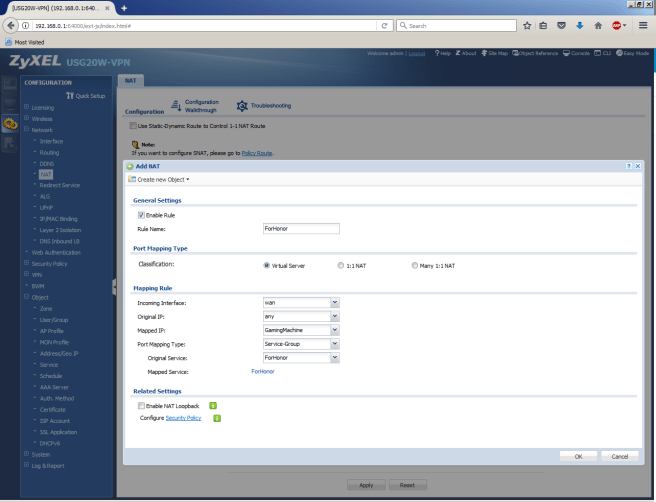
Once added the table should look like this:
Creating a security policy
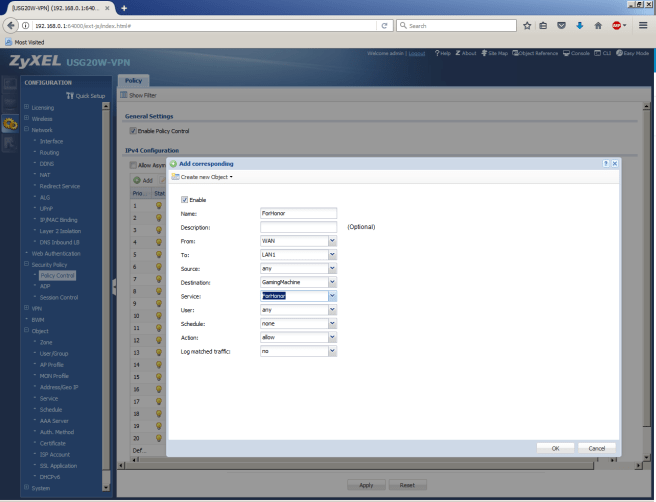
Go to Security Policy> Policy Control and create a rule
From WAN To LAN1
Source: Any
IPv4 Destination: Game PC
Service: Game service group
Action: Allow
Finally “For Honor” is displaying a green NAT Open.
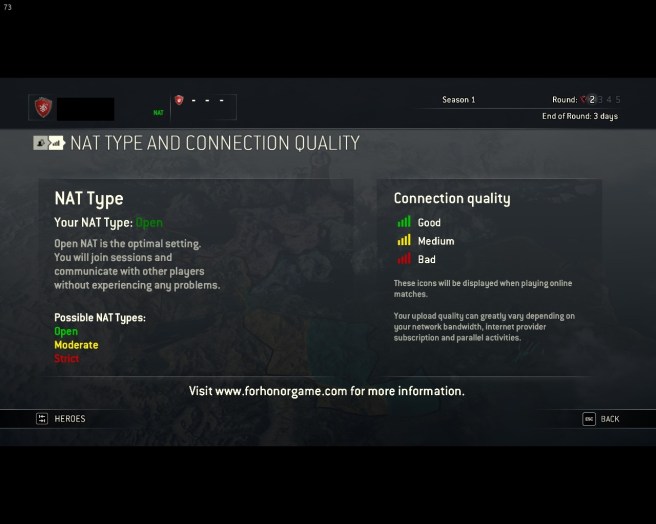
I didn’t undestand why, but even if the game works and shows NAT Type open if the ports are tested with the site: www.canyouseeme.org the results are negative for each of the ports.
 www.wordbites.ch